Categories

GHL Snapshot Changelog (AM08-05)

Client Snapshot v1.0 to v1.01

GHL has updated the form builder to allow more control of columns and spacing via the built-in interface. This has messed up the current CSS in the styling options for the Reputation Management form. The following changes will be made in the next release to remedy this:

Update the column options to match the following for the radio buttons:

CSS Changed to: 


body {

    background: linear-gradient(70deg, {{ custom_values.branding_color_primary }}, {{ custom_values.branding_color_secondary }}); !important;

    height: 100%;

    margin: 0;

    background-repeat: no-repeat;

    background-attachment: fixed;

}


::placeholder {

    font-family: {{ custom_values.branding_font__body }} !important;

    font-weight: 400 !important;

}


#_builder-form {

    border: 0px !important;

    background-color: #FFF !important;

    margin-top: 5%;

    border-radius: 10px !important;

    padding: 2%;

    box-shadow: 0 8px 15px rgba(0, 0, 0, 0.15) !important;

}


.image-container {

    text-align: center;

    margin-bottom: 20px;

}


.image-container img {

    max-width: 100%;

    height: 120px;

}


#_builder-form .col-12:nth-child(2),

#_builder-form .col-12:nth-child(3) {

    display: block;

}


#_builder-form .col-12:nth-child(3) .option-radio {

    text-align: center;

    width: auto !important;

}


#_builder-form .col-12:nth-child(3) .option-radio input {

    display: none;

}


#_builder-form .col-12:nth-child(3) .form-builder–item {

    text-align: center;

    direction: rtl;

}


#_builder-form .col-12:nth-child(3) .option-radio label {

    margin: 0 10px;

}


#_builder-form .col-12:nth-child(3) .option-radio input + label {

    display: inline-block;

    white-space: nowrap;

    cursor: pointer;

    padding-left: 0px;

    max-width: 80px;

    font-size: 0px;

}


#_builder-form .col-12:nth-child(3) .option-radio label:before {

    content: “☆”;

    color: #888;

    font-size: 4.2rem;

    line-height: 70px;

}


#_builder-form .col-12:nth-child(3) .option-radio input:checked ~ label:before,

#_builder-form .col-12:nth-child(3) .option-radio input + label:hover:before,

#_builder-form .col-12:nth-child(3) .option-radio:hover ~ .option-radio label:before {

    content: “★”;

    color: #ffd75c;

}


#_builder-form .col-12:nth-child(3) .option-radio > .star-cb-clear + label {

    text-indent: -9999px;

    width: .5em;

    margin-left: -.5em;

}


#_builder-form .col-12:nth-child(3) .option-radio:hover > input + label:before {

    content: “☆”;

    color: #888;

}


#_builder-form .col-12:not(:nth-child(1), :nth-child(2), :nth-child(3)) {

    display: none;

}


#_builder-form ul li {

    list-style-type: none;

    background-color: #fff;

    margin-bottom: 20px;

    border: 1px solid #CCCCCC;

    text-align: center;

    transition: all 0.15s cubic-bezier(0.68, -0.55, 0.265, 1.55);

    border-top-right-radius: 5px;

    border-bottom-right-radius: 5px;

}


#_builder-form ul li a {

    display: block;

    color: #666666;

    text-decoration: none;

    font-size: 24px;

}


#_builder-form .review_icon {

    background-color: #FFFFFF;

    padding: 10px;

    min-width: 18%;

    text-align: center;

    margin-right: 15px;

    font-size: 36px;

}


#_builder-form .review_icon i {

    color: {{ custom_values.branding_color_primary }};

}


#_builder-form ul li a:hover,

#_builder-form ul li a:hover i {

    color: {{ custom_values.branding_color_secondary }};

}


#_builder-form .col-12:nth-child(2),

#_builder-form .col-12:nth-child(4),

#_builder-form .col-12:nth-last-child(2) {

    text-align: center;

    padding-left: 10px !important;

    padding-right: 10px !important;

}


#_builder-form p {

    font-family: {{ custom_values.branding_font_body }} !important;

    color: #000;

    font-size: 0.975rem;

}


#_builder-form .col-12 h3 {

    font-family: {{ custom_values.branding_font_heading }} !important;

    font-weight: 600;

    color: #000;

    margin-bottom: 20px;

}


#_builder-form .col-12:last-child {

    text-align: center;

}


ul {

    margin-left: -40px!important;

}


#_builder-form .show_review {

    display: block;

}


#_builder-form .hide_review {

    display: none;

}


@media only screen and (max-width: 500px) {

    #_builder-form ul li {

        max-width: 400px;

    }


    #_builder-form .col-12:nth-child(3) .option-radio input + label {

        max-width: 50px;

    }


    #_builder-form ul li a {

        font-size: 18px;

    }


    #_builder-form .col-12:nth-child(3) .option-radio label:before {

        font-size: 1.5rem;

    }

}


@media screen and (max-width: 799px) and (min-width: 650px) {

    #_builder-form .col-12:nth-child(3) .option-radio input + label {

        max-width: 50px !important;

    }

    #_builder-form .col-12:nth-child(3) .option-radio label:before {

        content: “☆”;

        color: #888;

        font-size: 3.2rem;

        line-height: 60px;

    }

}


@media screen and (max-width: 649px) and (min-width: 375px) {

    #_builder-form .col-12:nth-child(3) .option-radio input + label {

        max-width: 50px !important;

    }

    #_builder-form .col-12:nth-child(3) .option-radio label:before {

        content: “☆”;

        color: #888;

        font-size: 2.8rem;

        line-height: 50px;

    }

}


@media screen and (max-width: 374px) and (min-width: 200px) {

    #_builder-form .col-12:nth-child(3) .option-radio input + label {

        max-width: 35px !important; 

    }

    #_builder-form .col-12:nth-child(3) .option-radio label:before {

        content: “☆”;

        color: #888;

        font-size: 2.2rem;

        line-height: 50px;

    }

}


{{ custom_values.branding_button_css }}


#_builder-form .field-container {

    width: 100%;

    max-width: 100%;

}

Client Snapshot v1.01 to v1.02

Update Trigger Link Content, Custom Values, and Add Button CSS as required that is not carried across the snapshot import process. 

button.btn.btn-dark.button-element { background-color: #f9c447 !important; border-radius: 8px !important; } button.btn.btn-dark.button-element p { font-family: Open Sans !important; color: #000 !important; font-size: 18px !important; font-weight: 600 !important; text-transform: capitalize !important; }

IRS Business Name Change Letter (AM08-03)

[date]


By Certified Mail – Return Receipt Requested


Internal Revenue Service

Kansas City, MO 64999


RE: [business name]

EIN


Ladies & Gentlemen:


Please be advised that the name of the company has been changed to [New Business Name]. Enclosed please find a copy of the Articles of Organization evidencing the Name Change.

Once records have been updated, please send us confirmation. Until we receive confirmation, we will continue to use the name [Old Business Name] in all of our communications with the IRS.

Please direct any questions regarding the enclosed to [contact name, address, phone]. Thank you for your assistance in this matter.

Very truly yours,


[Name]

[Title]

|  Enclosures

  • Articles of Organization


How to Plan and Optimize Your YouTube Videos (AM08-02)

Title

Use this section to plan your Youtube Video Title. A good YouTube title should be clear, concise, and relevant, clearly indicating what the video is about. Incorporate effective keywords to improve search visibility, and keep titles under 60 characters to avoid being cut off in search results. Engage viewers by sparking curiosity or excitement, and ensure the title stands out while remaining honest to avoid misleading clickbait. Tailor the tone and style of the title to match the video content and appeal to your target audience. 

Description

start with a compelling summary that encapsulates the video’s content within the first few lines, as this is what viewers see before clicking “show more.” Include relevant keywords naturally to enhance searchability. Include a clear call to action, such as encouraging viewers to subscribe or directing them to other related videos and playlists. Include links to social media, playlists, and other video content to increase watch time.

Keywords / Tags

Focus on using relevant and well-researched keywords and tags. Incorporate broad and specific tags to accurately categorize your content, enhance discoverability, and target the right audience. Utilize tools like VIDiQ or TubeBuddy to find popular keywords. Always include the most important tags first as they carry more weight in YouTube’s algorithm. 

Feeder Content Ideas

Use this section to brainstorm several short-form pieces of content that you can use to post on social platforms to drive users to your long-form content on YouTube.

Script / Storyboard

Use this section to write out your script. To aid in retention consider changing angles, visuals, locations, etc to maintain visual interest throughout the entire video and retain your audience to stack up watch time. 

Am08 02 1

Programs & Software We Use (AM08-01)

When possible, we have opted for discounts vs. affiliate programs to increase the savings passed on to you. 

  • Links in red ARE affiliate links and we receive a small commission when you use them. We appreciate you using them, however, do not feel at all obligated to use them.

Agency Tools


Plugins

Create and Schedule Reports Using Looker Studio (AM07-04)

Looker studio dashboards are a great way to visualize data directly from your client’s Google Properties AND third-party sources if you have access to the proper APIs and connectors. Follow along with the guide below to set up the Looker Studio Dashboard with the proper data sources and if you’d like a video guide – we have created one as well linked down below. 

Video Guide

This Video Guide will help you understand the full process of setting up the Looker Studio dashboard properly

Custom Report Fields

Am07 04 1

https://lookerstudio.google.com/reporting/c27704f5-ecea-48c6-8371-9a8d40c0075f 

Setting Up Your Templates

The report template customization process comes in three main steps:

  1. Confirm you have access to the client’s properties
  2. Setting up your data sources
  3. Copying and customizing the report

Check the Video Guide to ensure access and tracking tags are installed correctly on the client’s website and begin by setting up an account on your chosen connector for the Google Business Profile. Our recommendation is the following: 

  • https://datahub.gladior.com/
  • https://datahub.gladior.com/

Adding Your Google Analytics Data Source

Am07 04 2

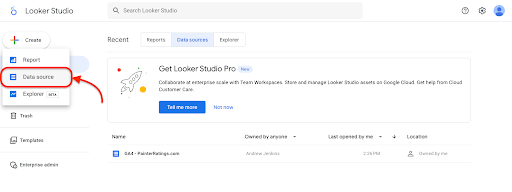
Begin the process by navigating to the “+ Create” Button in the top left corner and selecting data streams to create a new data stream. We can begin with Google Analytics by selecting it as the data source. After Adding the course you will be faced with the following screen. 

Am07 04 3

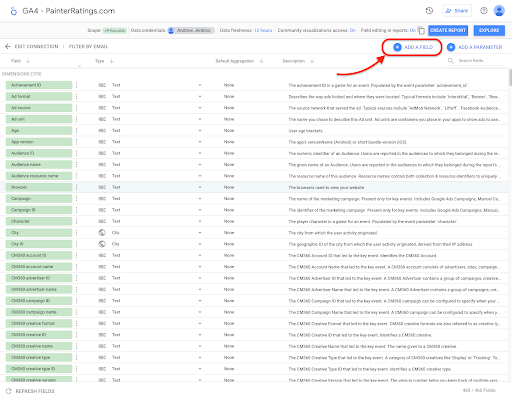
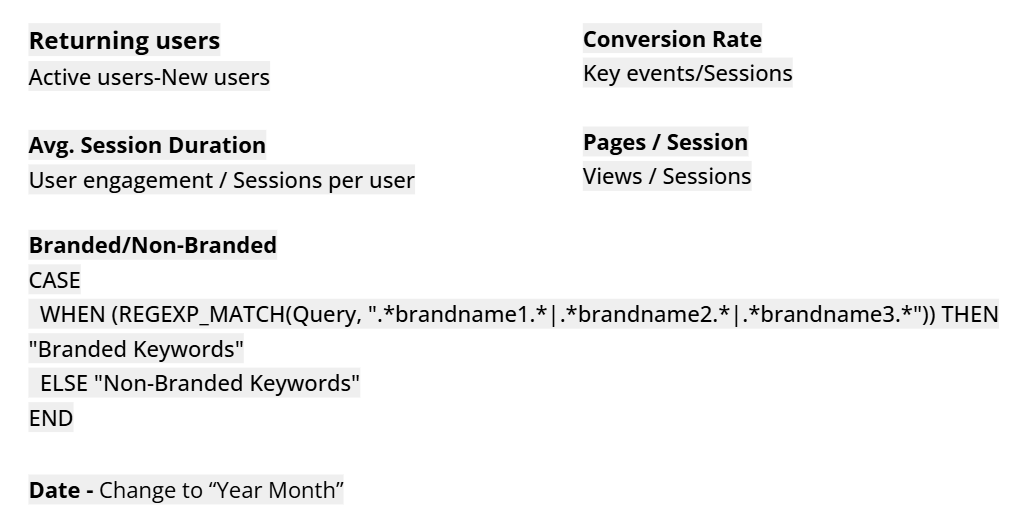
We will use the “Add A Field” button to create several Calculated fields that will populate the report correctly based on the standard data that is included in GA4. Simply Paste the name, as listed below and the formula into the appropriate boxes and then click save and move to the next field until complete. See the resources list on the first sheet. 

Am07 04 4

Adding Your Search Console Data Source

Use the “+ Create” Button in the top left corner and select data streams to create a new stream for Google Search Console. Select the domain for your property and select “URL Impressions” source to ensure you pull the correct data for the report. See the image below. 

Am07 04 5

Adding Your GBP Data Source

Make sure you properly set up your account already with the connector of your choice and then search for “Google Business Profile” on the connectors page and select the Gladior Source. Follow the prompts to select the correct property and click add.

Am07 04 6

Adding Google Ads Data Source

Our final data source is Google Ads. We don’t have any customizations to add this source so simply follow the prompts and confirm the source was added. Add any additional sources for data that you would like to add to the report. 

Copy the Report

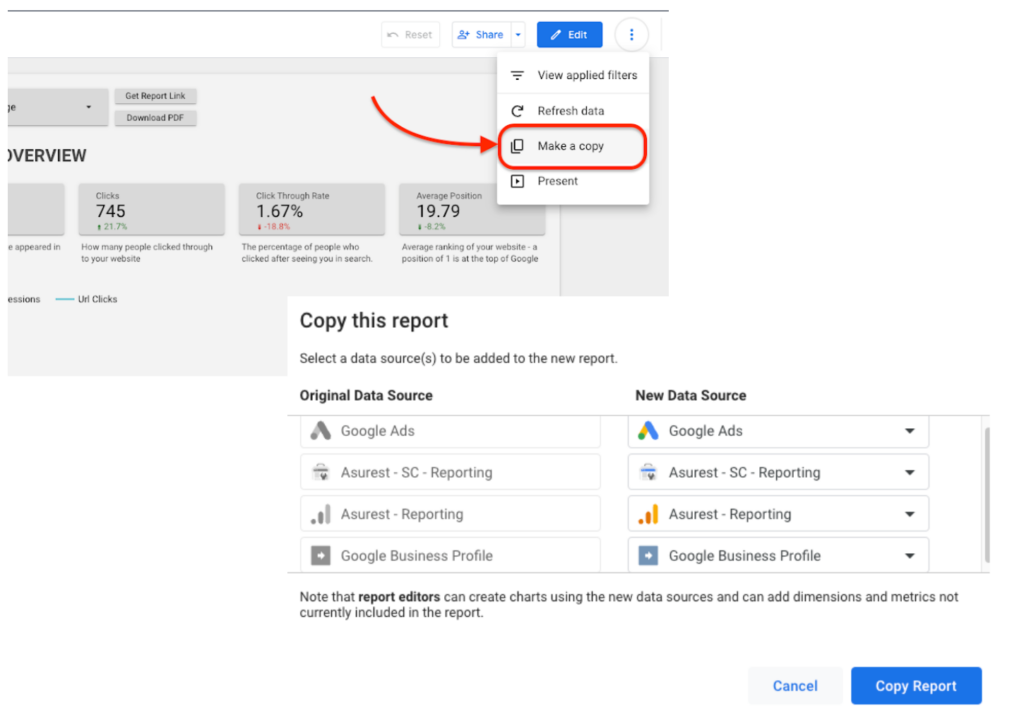
Navigate to the report dashboard and click the button in the top right corner to “make a copy” of the report to save your own copy. This action will open up the dialog to add all of your data sources next. Match up each source type to your own. If you are not using any of the sources, please scroll down to your data sources and select the “Sample” that’s included in Looker Studio to make sure the report copies properly. 

Am07 04 2 Am07 04 7

Create and Schedule Reports Using Local Brand Manager (AM07-03)

Configuring Your White Label Domain

The Local Brand Manager reporting white label feature supports domain, email, logo, and color scheme white labeling.  To get started, at the top right, click the dropdown menu, click on your ‘Organization‘ tab, and select ‘White Label Settings‘.  To add a new brand click the ‘Add New Configuration‘ button:

Am07 03 1

Public Access: This section allows your reporting to be available via either the local brand manager organization subdomain that we generate for you and/or the custom domain you add.  If it is set to Off, you will only be able to view reports as a logged-in user.

Default: Sets if this white label configuration is available for reports (inactive vs active)

Public subdomain: This section will be the domain that your reports are served from by default (with no white label configuration set up).

White Label Domain: To configure your white label domain you will need to login to your registrar (where your domain is hosted) and add a CNAME record that resolves to ‘wl.localbusinessreporting.com’. 

Once you’ve done this process, the LBM system will be able to detect your domain and properly configure your white-label domain. 

Brand: Enter the name of your white-label brand name that should show on your reports

Email: You can enter an email you would like the system to send reports out from.  Currently, the email can’t receive replies so choose something like ‘no-reply’ to let your customers know they shouldn’t reply to reporting emails. 

Primary Color: Enter your hex code for the color that you would like the navigation bar to be.

Logo: upload a logo for your white label configuration

App Logo: upload an app logo for your white label configuration

Am07 03 2

Once you’ve added this white label configuration you can go to the New Report Config page and select the white label configuration.

Configuring Scheduled Reporting

To get the report done the first thing we need to do is to create a  Report Configuration, we will need to set up a recurring schedule for monthly reports to be generated. Please create Scheduled Geogrid first using the link below if you haven’t already.

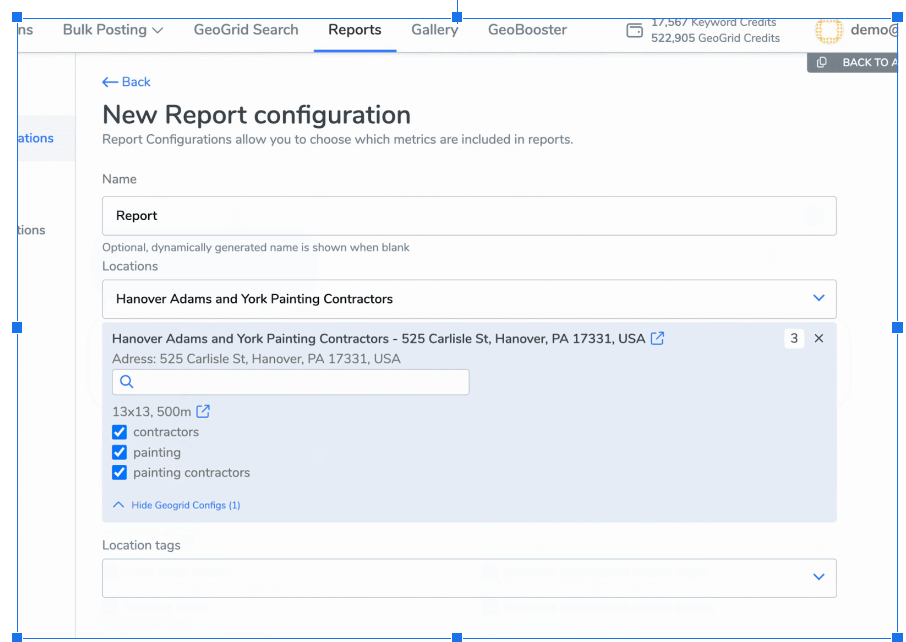
Provide a name for internal use, select the desired location for the report, and choose “Search Term” to include Geogrids in the report.

Am07 03 3

Select the properties you would like to include in your report. You’re able to include multiple locations in your reporting each month if a business has multiple GBPs. If you want to see complete statistics, including negative and zero values, you can do so by turning on the “Show zero values” and “Show decreases” buttons.

Am07 03 4

Next, Choose the reporting period, either weekly, one month, or three months, and select How often the report should run. Lastly, fill out your email settings and add a White Label brand if desired for your reporting. 

Create and Schedule Reports Using SEMrush (AM07-02)

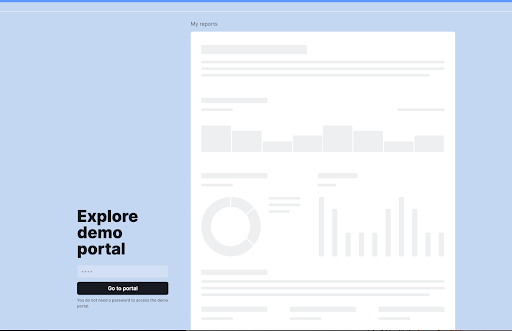
My Reports is a marketing PDF reporting tool that helps effectively show results to stakeholders and clients and proves the value the marketing team or the agency provides.  It helps report data from Semrush and major external digital marketing platforms across all marketing channels.

My Reports Tab

This is available to all Semrush users with free and paid plans (and some advanced reporting features are available only with the Agency Growth Kit subscription). 

  • Create reports from scratch or suggested templates
  • Create branded and white-label customizable reports with the Agency Growth Kit
  • Report data from both Semrush and major digital marketing platforms 
  • Schedule automatic email delivery
  • Easy for both one-time reports and recurring reports
  • SEMRush Reports

Data Integrations

You can report data from both Semrush and major digital marketing platforms and combine them in one report. Widgets of integrations that are shown on the My Reports page at the time of writing this document

  • Semrush Project Tools
  • Semrush Analytics Tools
  • Semrush Local
  • Google
  • LinkedIn Ads
  • Facebook Ads
  • Mailchimp
  • Matomo
  • CallRail
  • Twitter (X) Ads
  • Microsoft Ads
  • LinkedIn Company Pages
  • TikTok Ads
  • Snapchat Ads

Data visualization

SEMRush gives very detailed options to present your data numerically, in a table, a donut chart, and in a line chart. As well as offering multiple types of formatting options to setup your reports exactly how you would like. These will help to organize the shape of your report.

Creating Your Report

When making a new report, you can choose to start from scratch (1), from a pre-existing template (2), or your own custom template (3).

Am07 02 1

From Scratch 

To create a new report from scratch, navigate to the Template gallery and click on the “Start from scratch” section. This opens the Report Builder, where you can populate your report with modules of Semrush data and custom images.

Using a Template 

Each template includes specific reports based on some of SEMrush’s most popular tools.

To use a template, select the one you wish to work with from the menu and enter the domain and database you are reporting on. The template will then populate with data from your domain and database. Then, you can continue to customize your report in the Report Builder as if you were making it from scratch.

Custom Template 

To create your custom template for client reporting, click the gear icon and select the “create template” option from the drop-down menu. Once you create your custom template, you will find it in the template tab of My Reports.

It’s important to note that once you save a custom template, you will not be able to change this template and save it over it. However, you can add widgets to the template for one-time reports. 

Clone and bulk edit

If you have a report that you would like to copy, you can use the Clone and bulk edit feature available from the settings menu. This makes it very quick and easy to update all the data sources of the report anytime you want to create a new one.

Am07 02 2

Customizing Reports

Add a report title and subtitle on the cover page of your report. If you have an Agency Growth Kit add-on, you can also benefit from the advanced customization options:

  • Branding: Use a header that includes both a logo and a brief description of your brand instead of the standard Semrush logo in the header.
  • White-labeling: Removal of the “The report data taken from semrush.com” phrase. SEMrush will also not be marked as a sender, and you can customize the email text when scheduling or sending the report.
  • Custom themes: a set of backgrounds for your reports.
  • Custom visual styles: various color schemes and font sets to choose from.

Drag and Drop

To customize the content of your report, drag and drop elements from the left menu panel into the Report Builder. You can see a preview of what the widget will look like within your report by hovering over the info icon located to the right of every widget. As you drop the widget into your report, you can set the parameters, such as keyword, domain, database, time frame, etc., based on what data the widget pulls from the platform. 

Favorites Tab

Are there certain widgets that you use more than others? The favorites tab will save your go-to widgets, making new reports from your favorite reports or tools easy. To mark a particular widget as a favorite, click the star icon directly to the right of each widget.

Add Images

Just like inserting a custom logo onto the cover of your custom report, you can also add images to the body of your report. To enter an image into your report, just drag the image widget from the toolbar on the left to your report. Once the widget is dragged over, you can select any image from your computer to upload to the report.

This is perfect when creating more in-depth reports if you want to include a screenshot from another analytics tool you use. Or, include an image of a client’s product next to data about its performance to make a more visually appealing report.

Sharing Your Report 

Now that you have successfully created your report, there are several different options that you can use to share that report with your clients (again, depending on your level of subscription these will vary).

Generating PDF Report 

Use this option to generate your report and send it to your chosen email addresses. You can also automate reports through scheduled emails. Reports can be sent out on any day of the week and set to a daily, weekly, or monthly schedule. Scheduled reports are sent out automatically at 10 am according to the time zone set in your Profile. From the settings menu, you can also enable a table of contents to make for easy navigation of your custom report.

Am07 02 3

Invite other users 

When creating reports for marketing projects, you often need input and data from various individuals involved, such as teammates, freelancers, etc. Agencies and marketing teams can work together while creating reports and providing accurate performance data across various marketing channels, ensuring everyone stays informed and up to date.

You have the option of sharing reports for viewing or editing, depending on your team’s specific needs. To share the report, you need to find it in your report list and click “Share report”. You will be able to specify their ability to view and edit the report in the settings

Via a Client Portal  

* Available with the Agency Growth Kit 

Also, you can link reports to a Client Portal by clicking the “Connect” button – you can attach a report to your existing client or create a new one. This is a cool feature to store monthly reports online with a custom portal for your clients to log in and view all data.

Am07 02 4

How to Create and Schedule Reports Using SEO PowerSuite (AM07-01)

SEO PowerSuite tools are equipped with a set of customizable report templates that can be saved as HTML or PDF files and delivered to clients by various means: as an e-mail attachment, as a shareable link, or can be uploaded directly to an FTP server.

Setting Up Your Templates

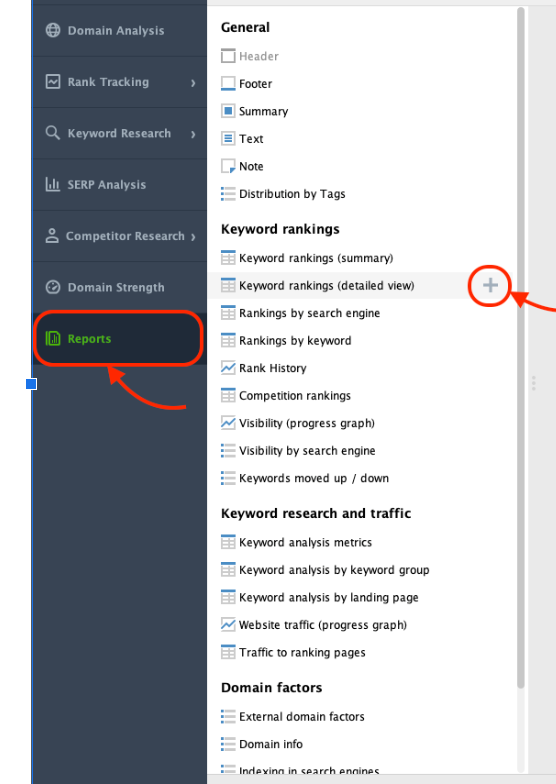
The report template customization process is identical to all SEO Powersuite tools. To edit any report go to the Reports section and click the Edit button next to the required report template (it will appear once you hover the mouse pointer over the template). This will open up the report template edit menu. The left side of the report template will have the list of widgets that can be added to the current template.

Simply click the plus “+” button next to the widget you want to add and it will be automatically added to the report template.

Am07 01 1

Once the widget is added to the report template it is also possible to edit and customize it: you can add/remove columns, manage the sorting order, select types of results to display in that widget, and do other types of customizations.

Manually Publishing Reports

Depending on the level of your subscription, you have several options for exporting or printing reports for your clients. Choose the option that best suits your communication style and cadence that you have established with your clients. 

  • Print reports on paper (available for Enterprise and Professional)
  • Quick save to hard drive as PDF or HTML files (available only for Enterprise)
  • Publish online via a shared link (available only for Enterprise)
  • Upload to an FTP (available only for Enterprise)
  • Send by e-mail as a PDF or HTML attachment (available only for Enterprise)

Am07 01 2

Printing Reports

Switch to the Reports section – select the report template you want to print out – click the Print button.

PDF/HTML file

Switch to the Reports section – select the report template you want to print out – click the Quick Save button. Then specify the folder where you want the report file to be saved.

E-mail / Create a Shareable Link / Upload to an FTP

To be able to send reports by e-mail or publish them online first you need to create a publishing profile. Go to “Preferences” > “Publishing Profiles” and click “Add Profile”. Then choose to create one of the following publishing profile types. 

  • Publish online and send the access URL via e-mail
  • Email as an attachment
  • Save to your hard drive
  • Upload onto a website via FTP

Once you select the required publishing type, click the Next button and follow the steps to connect your e-mail/FTP account to the software. Once finished, you will see a new publishing profile appear in the list of available profiles. This way you may create multiple publishing profiles that will let you publish your reports in different ways.

After you finish creating your publishing profiles go back to the Reports section – click the Publish button and choose the publishing profile that you want to use to publish your report.

Scheduling Reports

RankTracker lets you update projects, publish reports, or export data even when you are not at your desk. All you need to do is create tasks for jobs you would like to automate. You can manage existing tasks or create new ones under “Preferences” > “Scheduled Tasks & Alerts”, or jump to the menu by clicking the corresponding button in the top toolbar

Am07 01 3

Creating Scheduled Tasks

To create a new task, click the Add button and follow the setup wizard. Hover over any existing task to Edit it.

Choose Task Type

Select the type of task you’d like to automate: updating stats, exporting results, or publishing reports.

Choose projects

Choose a project (or a group of 3-5 projects) to include in the task. If a project you need does not appear on the list, please click to Add Project and specify a path to the file on your hard drive or in your cloud storage. Only saved projects can be selected.

Task Schedule Settings

Set the recurrence rules for your task: how frequently it should be performed, on which day/time. You can also indicate whether missed/delayed tasks should be automatically re-run (in case you may be working in the program during the start time of the task, or your computer may be turned off accidentally).

Set Up Alerts

To get notified in case of any unexpected or drastic changes after the task is complete, set up email alerts: choose the conditions that trigger email notifications, and specify the email address (or multiple emails, hitting Enter after each).

Set Scheduled Task Name

To make task management convenient in the future, assign a descriptive name to your new task (indicating task type and frequency).

Data Export and Report Publishing tasks

For the Data Export task, you’ll have to select an export template additionally – select/edit an existing one, or click to Add a new one on-the-go.

To automate reporting, you’ll have to assign a report template and a publishing profile to be used for a scheduled task. You can select any of the default templates, or go to the Reports module to customize them or create a new one from scratch.

Managing Scheduled Tasks

Once you finish setting up your scheduled tasks, make sure to click OK to save the changes in Preferences. In the Scheduler menu, you’ll have the list of your tasks along with their recurrence rules and the Last Run Result. You can Add a new task any time, as well as Edit or Clone an existing one.

NOTE: the software is desktop and therefore cannot start on its own. For RankTracker to perform the scheduled tasks, make sure to leave it running/minimized to Tray, and prevent your PC from Hibernating or going to Sleep mode.

You can go to “Preferences” > “Misc Global Settings” to choose what should be done by default upon closing the app that has active or scheduled tasks:

Please also ensure access to project files: all of the projects involved should be accessible through the paths you specified when creating your scheduled tasks. If a project has been moved to a different folder, please update its location in the scheduled task (edit it, uncheck the project in question, and Add it anew).


Leverage Social Media for Leads and Relationship Building (AM06-03)

Social Media Marketing agencies focus on creating “viral” social media content. As a local business owner that presents you with one major problem… 

After you provide them with mountains of recorded content

AFTER you wait for a week to get your edits back

AND AFTER you finally make time to post the content

99% of the traffic you’re getting is NOT local…

But, that is exactly how social media works if your content is picked up by the algorithm. The only way to target a specific location is by using paid advertisements. There is a way to leverage social media differently, however.

The Great Reframe

Social Media is the Ultimate Downsell. We should instead leverage social media to do two main things for our local business:

  • Create niche credibility & relatability 
  • Stack touchpoints to build relationship equity 

“Touchpoints refer to any interaction between a customer and a brand or product that can influence the customer’s perception and behavior.”

Studies show that when considering touch points we don’t approach the law of diminishing returns until AFTER eight touchpoints (source). How do we leverage this in combination with our social media?

Create a Social Profile Worth Following

Two things are important for this – You will need to be the “face” of your social media content. With today’s modern cell phone cameras, this is easier than ever before. There are even very affordable microphone solutions available. We recommend the Rode Wireless ME as an affordable but quality option. (AFFILIATE). 

Optimize Your Profile

This consists of a ton of different things I won’t cover here in depth but feel free to check out this guide on how to properly set up your bio, profile photo, links, CTA’s, and more to increase your likelihood of people hopping on your accounts and deciding to follow.

Here’s another quick tip, Leverage your Facebook Banner safe zones to share some type of offer. You can download Photoshop social media templates right here with the safe zones already established: Photoshop Template File Downloads

Create Valuable Content

Lastly, create content that establishes you as an expert in your field. Your content production value is less important than the information you have and how it is packaged. Short and easily consumable bits of information with a hook that stops the scroll is your best friend here Also be sure to share some of your personality with your followers in your content.

Use Local Facebook Groups 

Most business owners leverage social media groups already however the basic strategy tends to be fairly shallow – Spam the hell out of groups with janky ads. The goal is to be different and create engaging content within the groups as a slow play.

Think, networking events but virtual – You want to lead with and focus on developing relationships, not revenue. The way you do this is simply just providing value to the group.

Search for questions you can answer and add value to based on your niche.

Make requests for questions people may want answered about your niche.

Offer to share your expertise with anyone interested in pursuing a career in your niche.

These groups are a phenomenal way for you to leverage cross-industry partnerships as well. The value of developing these referral relationships is astronomical. Remember, it’s called “SOCIAL” media – Be social with it to establish your credibility and expertise in your area. 

There are tons of these opportunities in local groups.

Leverage Your Ultimate Down-Sell

It’s vital to leverage your social media accounts across your business team from management through to service delivery and sales.

Anytime you have a sale that doesn’t close – push them to social media to start to stack up those touch points. One easy way to do this is to offer to create content for that person in exchange for their following.

Wrapping Up

All 3 of the previous points are a vital part of the strategy. Without creating content nobody will want to follow. Without Leveraging the down-sell & the groups, you’re missing out on filling your socials with TONs of local qualified lead sources. 

How to Optimize Social Media Profiles (AM06-01)

Use this guide to optimize social profiles if your goal is to gain followers and subscribers to build a brand. As with all marketing, the ultimate goal is to drive some form of interaction via a CTA on all your social channels (Subscribe) in return for providing content they find engaging, interesting, entertaining, or informative. 

1 Select a High-Quality Profile Photo

Use a recognizable personal photo instead of a logo that reflects your professional identity and personality. Ensure the image is high-quality and not pixelated, with appropriate sizing for desktop and mobile. If you want to remove the background you can use a free service such as pfpmaker.com

2 Utilize Your Name and Keywords

Creating an effective username is crucial for increasing the visibility and accessibility of your profile to potential followers and customers. Incorporate both your brand or personal name and relevant keywords into your handle to highlight your identity and expertise. This approach not only strengthens your brand presence but also facilitates memory recall and fosters a human connection with your audience.

By including specific keywords, you enhance your profile’s searchability, making it more likely to appear in search results for those terms. For example, if your username includes “fitness,” it will show up whenever someone searches for fitness-related content. To make these changes, simply go to the ‘edit profile’ or ‘username’ section of your platform. It’s important to keep your handle straightforward and reflective of your business focus to optimize search functions effectively.

3 Craft a Compelling Bio with Keywords

Having a good bio is probably THE MOST IMPORTANT PART of your profile. Without it, you’ll get tons of visits but no followers. Your bio needs to be tailored to the platform you’re optimizing for. Instagram tends to be 4 lines and often includes emojis, facebook tends to include less emojis and may swap them out for bullet points etc. Use this guide as a framework for your bio: 

First, explain what you do and how you help. This is the first line they see, so make it clear what you’re about. For example, “I help home service contractors generate more leads.” Next, highlight why you’re different and why someone should follow you. With so many creators out there, you need to stand out. For instance, “By sharing proven marketing strategies for free.”

Then, build trust with a value statement. Mention a major accomplishment related to your niche to instantly gain credibility. An example could be, “Trusted by 200+ local businesses.” Finally, give them a clear call to action. At first, just ask them to follow you. Later, when you have a larger audience or a special offer, direct them to your link in bio.

It’s crucial that every CTA you make, whether in your bio or posts, is in the form of “Do ‘this’ to achieve ‘result’!” People are drawn to fulfilling their desires, so if you show them they’ll get what they want, they’ll be more likely to follow through. For example, “Follow me to skyrocket your business leads!” or “Tap the link in bio for a free marketing guide!”

4 Include a Clear Call to Action (CTA)

Direct users to your website or a single special offer by placing a link in your bio. Use a compelling CTA to encourage clicks, as we mentioned above! Do not place a ton of different links in your profiles stick to one main one aimed at promoting your offer or focused on growing your social channel.

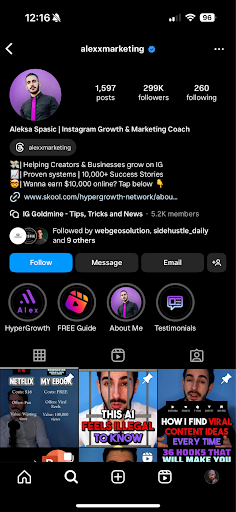
Ex. – see the example below for all these best practices in action

Am06 01 1

See the example above for the ideal use of Usernames, Name Fields, Bio, CTA, links, and highlights that we will cover in the next section. Use this same framework where applicable on all social channels to optimize them to increase follower count if your goal is to increase subscribers/followers and grow an audience.

5 Profile-Specific Features

Instagram

If using a business account, leverage features like business category, contact information, and action buttons. These features enhance your profile’s functionality and user interaction.

Instagram Highlights

Instagram Highlights can get you followers passively and, more importantly, drive sales or further interactions. So, they’re a must! Here are the main highlights you should consider using:

About Me

Keep it simple and clean. Make one or multiple slides where you Introduce yourself and share your past experiences. Consider highlighting your best achievements/projects and explain your motivation and what makes you unique. Describe how you help your followers/clients and then end with a call to action.

 – “Follow me for [benefit]!”

Services / Products

List and explain your services here. Keep explanations short, or no one will read them. For each service, explain the service simply and professionally (Optionally, state a cost)

Add a CTA at the end. Use a link sticker with your CTA or tell them to DM you. 

– DM me ‘SERVICE’ to achieve ‘RESULT’

Testimonials / Reviews

Share all your testimonials and add a CTA for each, promoting your top service or product. If you lack testimonials, reach out to people in your niche, offering free advice or small services in exchange. You can also do giveaways and ask for testimonials afterward. This can build credibility and trust.

Freebie

Offer something free in exchange for an email address to start building an email list as well. Clearly explain what you’re giving for free and why it’s useful. Send these people to an automated landing page/system to get the document in exchange for their email or do it manually if you prefer.

Highlight Covers

Use Canva or your design tool of choice to create simple symbols with your brand colors as highlight covers. This makes your profile look more professional and clean. 

  • Go to Canva and create a design for Instagram Story
  • Choose a background (black, white, or your brand color)
  • Search for a symbol that represents your highlight (e.g., “services”)
  • Change the symbol’s color to match your brand
  • Download, upload to your story, and choose it as the highlight cover

Contact Options

It’s harder for individuals and brands to reach you without a contact option.

It makes your “Follow” button smaller, reducing the likelihood of people following you. Add at least an email address in the “Contact options” under “Edit profile.” 

Facebook

Ensure your business category is accurate, and utilize tabs and action buttons to facilitate bookings, orders, or inquiries directly from your page.

Leverage your Facebook Banner safe zones to share some type of offer like I did. You can download my Photoshop social media templates right here with the safe zones already established: